A useful request names the item, the result you want, and any boundaries. Bhranti can find information on your site, make changes and show what happened along the way.
On the draft About page, make the opening paragraph warmer and shorter. Keep the facts, leave the other sections alone, and do not publish it.
Start small or agree on a larger brief
For a focused edit, say exactly what should change. For a new site, substantial redesign or store, provide the audience, purpose, content, visual references and publication expectations you already know.
Bhranti may ask a small group of questions when important decisions are missing. A task marked Waiting for your answer is paused. Reply in the same conversation; you do not need to start again. An answer such as “Use the existing logo, target local customers, and keep it as a draft” is more useful than repeating the original request.
Follow the live status
The task strip above the composer reflects the current work. Common messages include:
- Planning next step… — Bhranti is working out what to do next.
- Running a WordPress action… or a named action — Bhranti is carrying out that step.
- Waiting for the rendered preview check — keep Bhranti open while it checks how the saved page displays.
- Waiting for your answer — reply to the question in the chat.
- Waiting for your approval — review the action and select Approve, or decline with Cancel or Deny as shown on the card.
- Completed, Partially complete, or Task stopped — read the final result to see what was finished and what remains.
The status shows how long the current step has been running. Replies appear when that step is ready.
Inspect an action
Before making a change, Bhranti shows a summary and the item it will affect. Expand Action details when you want the operation’s technical details. If a target link is offered, it opens the named WordPress item.
After completion, actions remain in the conversation. Several successes can be grouped under a completed actions disclosure. Expand the group and individual entry to see its summary, time, target and any Roll back button.
Plugin changes and supported deletions pause for approval. Creating a form, changing its notification destination, or making a WooCommerce store or other site pages visible also pauses for an exact Approve/Deny card. Check the listed address or visibility change before approving. A plugin installation card can include activation in the same approval; check its listed changes before choosing Approve or Cancel. Declining approval stops the current task. Resolved decisions fold into the action history in chronological order and remain expandable.
An earlier successful action remains saved even if a later step fails. Review the action results and the changed page to see what was completed.
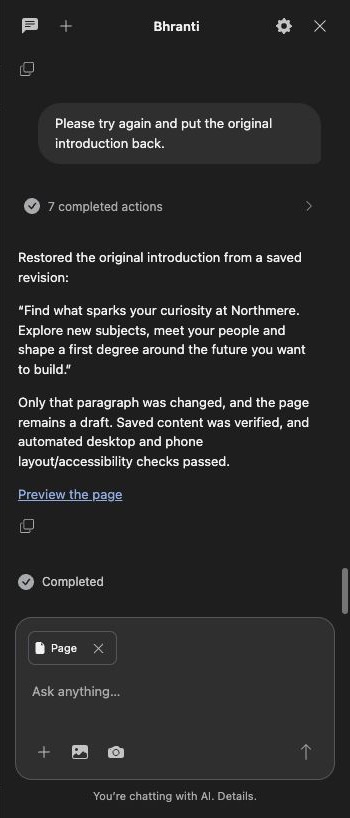
Expand completed actions to see each step. The final reply summarizes the result and links to the page. Select the screenshot to view it at full size.
Read the Work plan
Substantial tasks can show a Work plan disclosure. It holds the objective, outcomes and checks so a continued task can keep track of what has happened.
Outcome labels include Pending, In progress, Recorded, and Blocked. Check labels distinguish Saved state checked, Rendered checks passed, and Review needed.
Saved state checked means Bhranti confirmed the changes were saved. Rendered checks passed means the page passed its automated layout and accessibility checks. Before publishing, preview the page and try its important links, forms and controls; automated checks cannot cover every visitor interaction or accessibility requirement.
Work safely in an open editor
Save or discard your local edits before asking Bhranti to change that item. Bhranti protects active typing, unsaved content, saves and autosaves, including relevant activity in other editor tabs.
While Bhranti works on the post or page you have open, the editor may dim and show Post is under Bhranti’s control or Page is under Bhranti’s control. If you have no unsaved edits, its saved changes can appear beneath the overlay.
Other site actions may temporarily dim the WordPress admin area. The chat and Stop remain available. Control is released when the task completes, pauses, needs an answer or approval, or hands work back.
If the status asks you to save or discard editor changes, check all relevant tabs. After resolving the local edits, use Resume when offered. Do not refresh an editor with unsaved work just to clear the message.
Stop a task
- Select Stop in the live task strip.
- Wait while the status says Stopping after the current step….
- Review the final status and completed actions.
Stop takes effect between steps. It cannot recall a request already sent, and it does not undo completed site changes. Use Roll back on eligible actions if you need to restore them.
You can draft your next message while a task is running. Send, New chat, attachments and some other controls are unavailable while the current run is active so a second operation does not compete with it.
Continue after closing the browser
Bhranti saves its progress and can continue work after the sidebar or browser closes. It uses WordPress scheduled tasks, which rely on site visits or scheduling set up by your host.
Tasks pause when Bhranti needs your answer or approval. Page-preview checks also need the sidebar open. Changes may wait while you have an editor open; save or discard any unsaved edits and select Resume if asked.
Reopen the same conversation to see its progress. If work pauses, follow Logs and recovery.