Use one chat for a connected piece of work, such as updating your About page. Start a new chat when you move to a different project. Your conversations are private to your WordPress account through Bhranti’s interface.
Open and close Bhranti
Select Bhranti in the WordPress admin bar to open the sidebar. The post/page editor also provides a Bhranti opener when the admin-bar control is unavailable. Select Close Bhranti in the sidebar header to close it.
The sidebar stays open as you navigate between WordPress admin pages. When you switch to viewing the site, open Bhranti again if needed. Closing the sidebar is not the same as stopping a task: eligible work can continue through WordPress scheduling. Use Stop if you want the task to stop between steps.
While a site change is being saved, Close may briefly be unavailable with the explanation Available after the current change finishes. The chat and Stop remain accessible while Bhranti protects the ongoing action.
Start a new chat
- Open Bhranti.
- Select New chat, the plus icon in the header.
- Type your request in the message box.
- Check the context chips and attachments, then select Send message.
The plus icon beside the message box is a different control: Attach current page context. It does not start a chat.
New chat is unavailable while the current task is active, an image is being prepared, or the sidebar is loading. Wait for the task to finish, or use Stop and allow its current step to end.
Continue an earlier conversation
- Select Chats in the sidebar header.
- Use Search chats… to filter the displayed list by conversation title.
- Select a conversation. Its messages, action history and available work plan open in the sidebar.
- Send a follow-up in the same chat when it relates to that work.
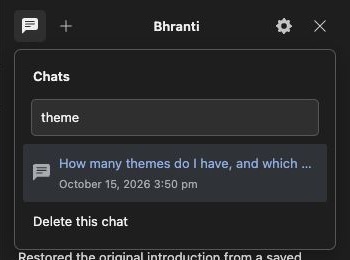
Search filters conversation titles. Delete this chat appears below the list when an existing saved conversation is open. Select the screenshot to view it at full size.
The chat list shows the latest 50 conversations. Search filters the titles in that list; it is not a full-text search across every message. The current conversation is marked in the list. Chat switching is disabled while a task is active.
A conversation holds up to 200 messages, including Bhranti’s replies. When the limit is reached, start a new chat for the remaining work. The chat shows the latest 100 actions; use Logs to search older activity, follow a task or download its records. You can also ask Bhranti to explain the logs for this conversation without making changes.
Conversation titles are derived from the initial request. There is no separate rename control in the current sidebar.
Write and keep a draft
Press Enter to send, or Shift+Enter to add a new line. The message box accepts up to 12,000 characters per submitted message.
You can draft your next message while Bhranti is working. Send stays disabled until the active task reaches a state that can accept input. If Bhranti asks you a question, answer in that same chat.
Your unsent text stays with its conversation when you switch chats in the same browser tab. Drafts are not shared across devices. You may need to reattach an unsent image after refreshing or closing the tab.
Delete a conversation
- Open the conversation you want to remove.
- Wait for its task to finish, or Stop it and wait for the current step to end.
- Select Chats.
- Select Delete this chat below the conversation list. Scroll the Chats menu if the list is long.
- Read the browser’s confirmation and confirm only if you want to delete that conversation permanently. Cancel keeps it.
Deleting a chat removes its private conversation data, work plan and rollback records. It does not undo changes to your site or remove their audit entries from Logs. If you need to restore a supported edit, use Roll back before deleting its conversation.
Read long conversations comfortably
Completed actions may be grouped under completed actions. Expand the group, then expand an individual action to see its summary, time, affected item and any Roll back control. Failures and pending approvals remain visible. Resolved approval decisions fold into the task history in chronological order; expand an entry to review it.
Use Jump to latest when you have scrolled up and want to return to the newest message. Use Copy response beside an assistant reply to copy the reply.
Press Escape to close an open Chats menu first; with the menu closed, Escape closes the sidebar when it is safe to do so.
On a desktop-sized screen, drag the sidebar’s left edge to resize it. You can also focus Resize Bhranti sidebar and use the left or right arrow key.
Choose an agent
If your administrator has added more than one agent, Chats also contains an Agent selector. Choose an agent before your next request. The selector is unavailable during an active task.
Agents and skills explains how to create these instructions and when changes take effect.