Memory holds preferences you ask Bhranti to remember for your account on this site. It also keeps a small set of checked facts about available image features. It is separate from your conversations and the shared instructions in Settings.
Ask Bhranti to remember a preference
Say what you want remembered, for example:
Remember that I prefer concise page headings and British English.
Use memory for stable preferences about language, tone, design or workflow. Keep passwords, API keys and sensitive personal information out of memory.
Bhranti rejects recognizable credentials, recovery phrases and token-like values in memory. It also checks the request you quoted, so extracting a secret from a longer message does not make it a valid preference.
Remembered preferences guide future work. They do not override your current request, WordPress permissions, saved action switches or the features your connector currently supports.
Review your saved memory
- Open Bhranti → Settings.
- Find the Memory card.
- Read Saved preferences.
- Expand Verified capabilities to see what Bhranti has checked about available image features.
- Select Refresh memory to see the latest saved information.
The card shows only your memory on this site. Relevant preferences and checked facts may be shared with your AI provider when you chat.
Saved facts about image features expire after one day and are checked again when needed. A temporary provider error does not mean a feature is permanently unavailable.
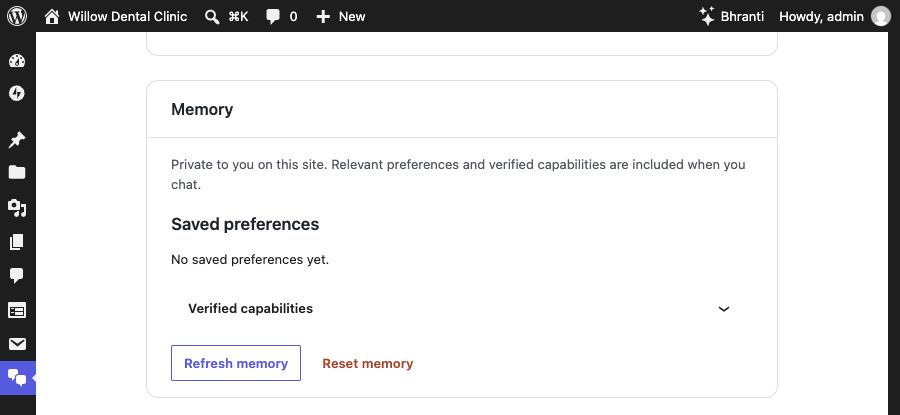
Use Refresh memory to load the latest preferences. Reset memory becomes available when there is saved information to remove. Select the screenshot to view it at full size.
Reset your memory
- In the Memory card, select Reset memory.
- Read the notice explaining what will be removed.
- Select Reset my memory to confirm, or Keep memory to cancel.
- Wait for Your memory was reset.
Reset removes your saved preferences and verified capabilities for this site. Your chats and site content stay in place. This action has its own confirmation and does not wait for the page’s Save settings button.
If memory changed since you loaded the card, use Refresh memory and review it before trying the reset again. If a reset could not be confirmed, refresh first to see what is currently saved.
If memory is unavailable
If older memory contains text that fails these checks, it is withheld from AI requests and export. Use Reset memory to clear it and save your preferences again.
Your server must support the encryption and database locking Bhranti uses for private memory. If it does not, the card explains the problem and you can still chat.
Memory is encrypted in the WordPress database, separately for your account and this site. If your site administrator changes WordPress’s authentication keys, earlier memory can become unreadable; you can reset it in Settings. WordPress personal-data export, erasure and plugin uninstall also cover this memory.
While Bhranti is active, deleting a WordPress account also clears its saved memory. If storage is busy, Bhranti retries through WordPress scheduling, which needs site traffic or a configured scheduler. On multisite, removing someone from one site clears only their memory for that site.
On a multisite network, an interrupted plugin deletion can leave memory unavailable until the administrator retries deletion or explicitly reactivates Bhranti. Preferences already erased during the interrupted attempt cannot be restored by reactivation.
Conversations are stored separately in the WordPress database and are not encrypted there. Read the full privacy guide.