Open Bhranti → Settings in the WordPress admin menu, or select Bhranti Settings in the sidebar header. This screen holds site-wide action permissions and instructions. Provider setup stays in Settings → Connectors.
Change and save a setting
- Open Bhranti Settings.
- Change the relevant switch, field, agent or skill.
- Look for Unsaved changes near the bottom of the page.
- Select Save settings.
- Wait for Settings saved. before leaving.
Switch changes take effect when you save. If saving fails, your local edits remain available to review. If someone else saved a conflicting version, use Reload saved settings only after deciding whether to discard your unsaved edits. The confirmation offers Reload or Keep editing.
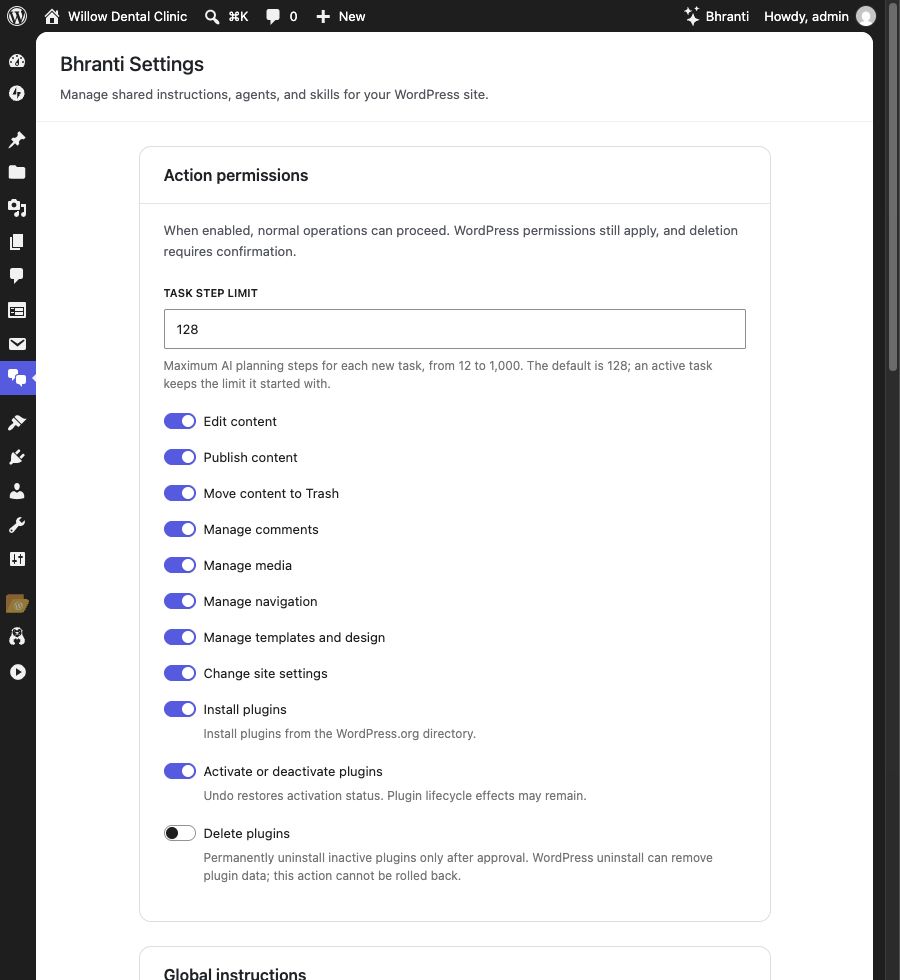
Use Action permissions to set the task limit and choose which kinds of changes Bhranti can make. Delete plugins starts disabled. Select the screenshot to view it at full size.
Action permissions: every switch
Routine switches are enabled by default. Delete plugins is disabled by default. WordPress permissions still apply when a switch is enabled. Actions run as your account and require your current native WordPress permissions. Some operations require more than one switch.
| Switch | What it allows |
|---|---|
| Edit content | Edits to supported posts, pages, forms and product content. Creating a form or changing its notification destination also requires an exact Approve/Deny card. |
| Publish content | Publishing supported content and editing content that is already published, private or scheduled. The relevant content-editing permission is also required. |
| Move content to Trash | Moving supported items to Trash. You must still approve each item using its Approve/Deny card. Permanent content deletion remains blocked. |
| Manage comments | Supported comment changes. Trash may also require the Trash switch and approval. |
| Manage media | Supported image generation, media details and media assignments. It does not allow arbitrary file uploads or replacement. |
| Manage navigation | Changes to supported navigation and menu items. Some menu and category operations are unavailable. |
| Manage templates and design | Supported template customizations, template parts and global styles. It does not grant access to theme source files. |
| Change site settings | Supported WordPress and WooCommerce setup settings. Making the store or other site pages visible also requires an exact Approve/Deny card. Credentials and security settings cannot be changed. |
| Install plugins | Install the current WordPress.org directory package after its Approve/Cancel card. The card may include activation when both switches allow it. ZIP files and other package URLs are unsupported. |
| Activate or deactivate plugins | Allow activation listed on an installation card, or a later status change with its own approval. Roll back restores status only; lifecycle effects may remain. |
| Delete plugins | Permanent uninstall of eligible inactive plugins, only after its own Approve/Cancel card. Uninstall can remove plugin data and cannot be rolled back. |
Your site’s server configuration must also allow permanent plugin deletion before Delete plugins becomes available. If the switch is unavailable, ask the person who manages your site or hosting. Bhranti and the AI/connector plugins it depends on are protected from changes that would stop them working.
Turning a switch off blocks new changes in that category. Bhranti can still inspect supported content without changing it. Saved switches are checked before each action, including during longer tasks. Chats, agents and skills cannot override them. You can still roll back an eligible earlier change after disabling new actions.
Set the Task step limit
Task step limit controls the maximum number of AI planning steps for each new task. The default is 128. Enter a whole number from 12 to 1,000, then Save settings.
A step is one part of planning or carrying out the task. The limit does not set a word count or duration, or guarantee completion. A higher limit can permit more work and more provider use. An active task keeps the limit it started with.
You may also ask Bhranti to read or change this one setting through chat. You can use Roll back on that change if the settings have not changed again since. Bhranti cannot use this ability to change its own permission switches, prompts, agents or guardrails.
Add Global instructions
The Global instructions card has two text fields:
- System prompt adds guidance for every agent, such as the organization’s tone or preferred working approach.
- Guardrails adds rules every agent should follow, such as “Keep new pages as drafts unless I explicitly ask to publish.”
These instructions do not override permission switches, WordPress permissions or required approvals. Do not put passwords or API keys into either field: relevant instructions can be shared with the configured provider.
Save your changes. New requests use the updated instructions; a request already running keeps the instructions it started with.
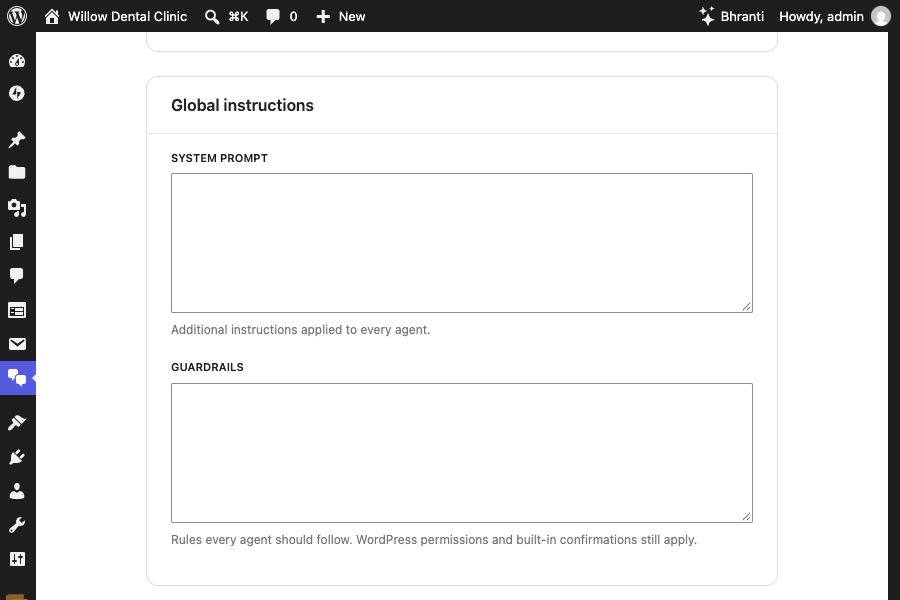
System prompt and Guardrails apply across agents. Save settings after changing these fields. Select the screenshot to view it at full size.
Memory, agents and skills
The rest of Settings contains:
- Memory — review your own saved preferences and verified capabilities; Refresh memory or reset them. Memory guide.
- Agents — add named working instructions and skills. Agents and skills guide.
Memory is private to you on this site. Shared prompts, permission switches and configured agents are site-wide settings.