Bhranti opens beside WordPress, so you can ask for help where you are already working. Begin with a small read-only request. You can try an edit once you have seen how the conversation and action history work.
Before you begin
You need:
- WordPress 7.0 or later and PHP 8.0 or later.
- An administrator account.
- A compatible text provider configured in WordPress’s native Settings → Connectors screen.
Download the Bhranti plugin ZIP and follow the steps below, or find Bhranti on WordPress.org.
1. Install and activate the plugin
- In WordPress, open Plugins → Add New Plugin → Upload Plugin.
- Choose the Bhranti ZIP and install it.
- Activate Bhranti when installation finishes.
If you manage plugins through the filesystem, place the Bhranti folder in wp-content/plugins, then activate it from Plugins.
Use the installable Bhranti release ZIP. GitHub’s automatic Source code archives contain the development checkout and are not the installation package. The public GitHub repository contains the source, build instructions and issue tracker.
2. Connect your AI provider
- Open Settings → Connectors in WordPress.
- Follow your chosen provider’s setup instructions.
- Complete any connection approval your site asks for.
Manage your provider connection in Connectors. Available models and features depend on that connection. You do not need to enter an API key in Bhranti Settings or install the separate WordPress AI plugin.
Until a provider is connected, the sidebar shows Connect an AI provider and keeps the message and attachment controls disabled. Select Open Connectors to set it up in a new tab, then return to Bhranti. It checks the connection again when you return; select Check connection if needed. Existing chats remain readable.
3. Open the sidebar
Select Bhranti in the WordPress admin bar. In a post or page editor where the admin-bar opener is not available, look for the Bhranti button in the editor header.
Bhranti uses your existing WordPress account. It does not create another user. Your current WordPress permissions and the action switches in Settings determine what it can do. Logs identify the account that requested each action.
The sidebar header includes Chats, New chat, Bhranti Settings, and Close Bhranti. Point at an icon, or focus it with the keyboard, to identify its control.
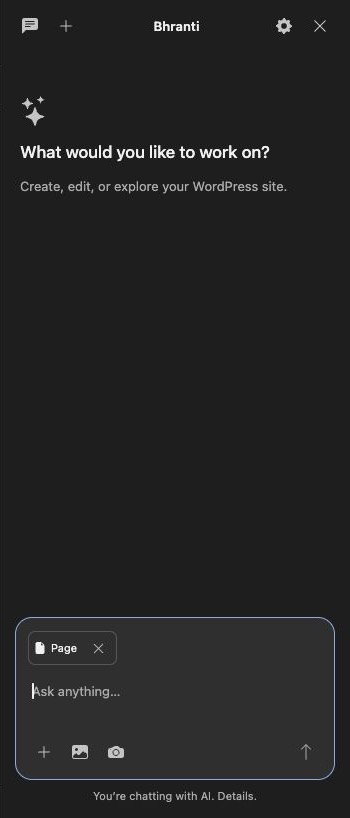
Use the plus in the header to start a chat. Use the plus beside the message box to attach the current page. Select the screenshot to view it at full size.
Open You’re chatting with AI. Details. below the message box to review what a submitted request can share. Opening the sidebar alone does not contact your AI provider.
4. Ask a read-only question
- Open the page or admin screen you want to work with.
- Check the context chips above the message box. A page chip and, in the block editor, a selected-block chip may be present.
- Type a specific request in Message Bhranti.
- Select Send message, the upward-arrow button, or press Enter. Use Shift+Enter for a new line.
Try:
Find the About page and tell me its current heading. Do not change anything yet.
Bhranti shows what it is about to do, followed by the result. Expand a completed action to inspect its details or open the affected item.
5. Try a focused edit
Open a draft page, save any local changes, then ask:
On this draft, replace the opening sentence with “A small team making useful things.” Keep everything else and leave the page unpublished.
Review the saved page and the completed action. Where the action supports Undo, its expanded details offer Roll back. Learn exactly what can be restored.
For a new site, store or major redesign, expect Bhranti to ask about the audience, content and decisions it cannot infer. Answer in the same chat. Small, clearly specified edits do not need a long setup conversation.
Choose your next guide
- Chats and the sidebar — start, find and delete conversations.
- Context and attachments — control the page context and images you send.
- Settings and permissions — understand every switch before larger work.
- Working with Bhranti — follow actions, plans and background tasks.