Context helps Bhranti understand “this page” or “the selected heading.” Attachments help show a visual reference. Review both before sending: they can be shared with your configured AI provider as part of the request.
Include the current page
The message box starts with current-page context enabled. Depending on where you are, its chip may say Page, Post, Template, Template Part, a page title, or Current page.
- Open the WordPress screen you want to discuss.
- Check the context chip above the message box. Its tooltip identifies the page where available.
- Write a request that states the result you want.
- Send the message.
Page context can include part of the visible page’s text and structure, along with editor information. Bhranti can also look up supported saved content elsewhere on your site when your request calls for it.
To leave the page context out of the next message, use the chip’s Remove context control. To include it again, select Attach current page context, the plus icon beside the message box.
Removing the page chip also excludes the selected block. Bhranti can still look up site content you ask it to inspect, within your site’s permissions.
Point to a selected block
- In the block editor, select the block you mean, such as a Heading or Paragraph.
- Check that a chip with the block’s name appears beside the page chip.
- Describe the specific change, for example: “Rewrite this paragraph in two sentences. Keep the facts and do not publish.”
- Send your message.
Remove only the block chip if you want to keep page context but leave out the selection. Attach current page context re-enables both page context and the current selection.
A selected block shows Bhranti which part you mean. It checks for unsaved edits before changing the saved page.
Attach a reference image
- Select Attach reference image, the image icon beside the message box.
- Choose a PNG, JPEG or WebP file from your device.
- Review its preview and the note Shared with AI when you send.
- Explain what to take from it: layout, spacing, typography, mood or another specific quality.
- Send the message when ready.
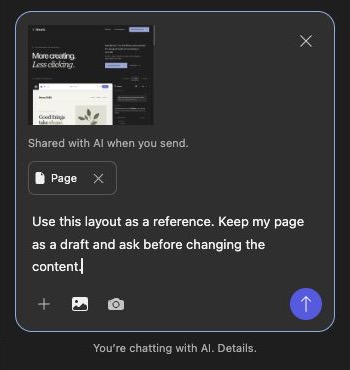
Review the image preview and describe what you want Bhranti to take from it. Use Remove image to leave it out before sending. Select the screenshot to view it at full size.
Use Remove image on the preview to remove it before sending. Choosing another image replaces the pending image. You can attach one reference image or captured screenshot at a time.
Files must be valid PNG, JPEG or WebP images up to 10 MiB, no more than 25 megapixels, and no more than 10,000 pixels on either side. Your browser prepares a smaller JPEG on a white background, up to 1,600 pixels on its longest side and 2 MiB. To use the image on a published page, upload it to the WordPress Media Library separately.
Capture a browser-tab screenshot
- Select Attach tab screenshot, the camera icon.
- In your browser’s sharing picker, choose a browser tab.
- Confirm the browser’s sharing choice.
- Review the captured preview in Bhranti.
- Add your instructions, then send the message.
Bhranti takes one still image, then stops capturing. The image is shared with AI only when you send. If you cancel the picker, no new screenshot is attached.
If your browser does not support tab capture, use page/block context or save an image and choose Attach reference image. The screenshot control accepts a browser tab only, rather than a whole window or screen.
Keep a reference through follow-up questions
For substantial work, Bhranti may ask about the audience or content after you submit a reference. Your image can stay attached to that task while you answer. A Reference image chip shows that it is still included.
- Keep the chip if the reference still applies.
- Use Remove reference image before sending an answer to leave it out.
- Attach a new image to replace it.
The chip refers to your original image, so capture another screenshot if you want to show a changed page. The reference is not carried into unrelated new tasks or chats.
Share a design-reference URL
Put a public HTTPS page link in your message and describe what you like about it. Bhranti can read a limited amount of its text and structure without signing in or using your browser’s cookies.
Attach a reference image or tab screenshot for visual details; reading a link does not capture the page’s appearance. Use a public link that does not contain passwords or private access tokens.
For the full data picture, see AI and privacy.