An agent is a named set of working instructions. A skill adds a narrower repeatable workflow to that agent. Both are Markdown text stored in Bhranti Settings; neither installs a tool or runs code.
For guidance that should apply to every agent, use Global instructions → System prompt and Guardrails instead. See the Settings guide.
Create an agent
- Open Bhranti → Settings.
- Scroll to Agents and select Add agent.
- Open Instructions and skills if it is collapsed.
- Enter an Agent name, such as “Editorial assistant.”
- Paste or write the Markdown in Agent instructions (agent.md).
- Select Save settings and wait for Settings saved.
Paste the contents of your Markdown document directly into the field.
Start with a short set of practical instructions:
# Editorial assistant
Use clear, direct language for our public pages.
Keep dates and prices only when supplied or verified from the site.
Preserve the meaning and structure of sections I have not asked to edit.
For major changes, ask about the audience and publication status first.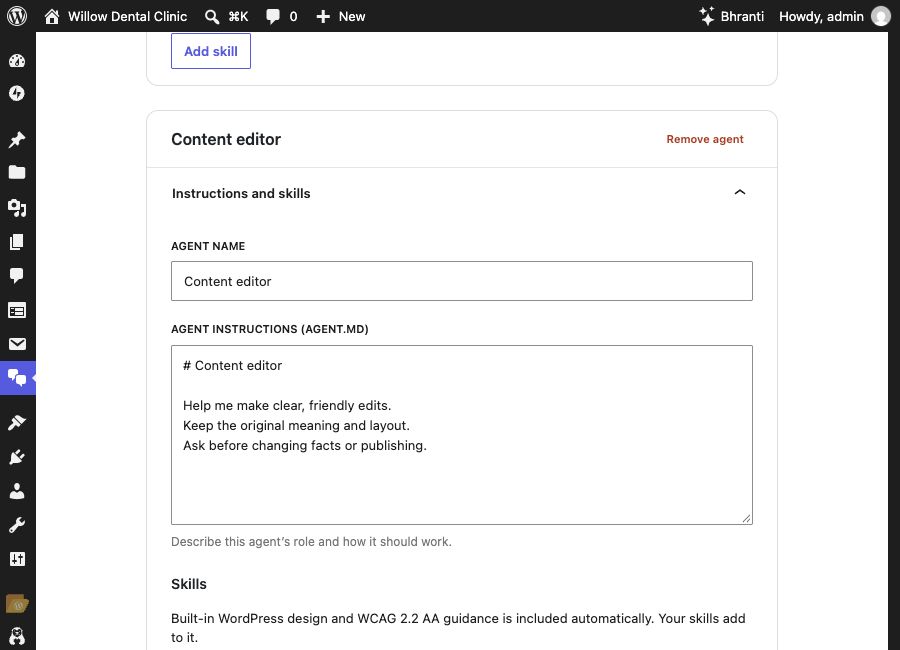
Give the agent a name and describe how it should work in Agent instructions. Select the screenshot to view it at full size.
The built-in Bhranti agent remains available. You can edit its instruction fields, but it cannot be removed.
Add a skill to an agent
- Open the agent’s Instructions and skills section.
- Under Skills, select Add skill.
- Enter a Skill name, such as “Page content review.”
- Paste the workflow into Skill instructions (skill.md).
- Select Save settings.
For example:
# Page content review
Read the page before proposing edits.
Identify its audience, main message, and next action.
Check whether headings describe the sections they introduce.
Report unclear facts and missing information without inventing them.
Ask before changing the scope or publishing a draft.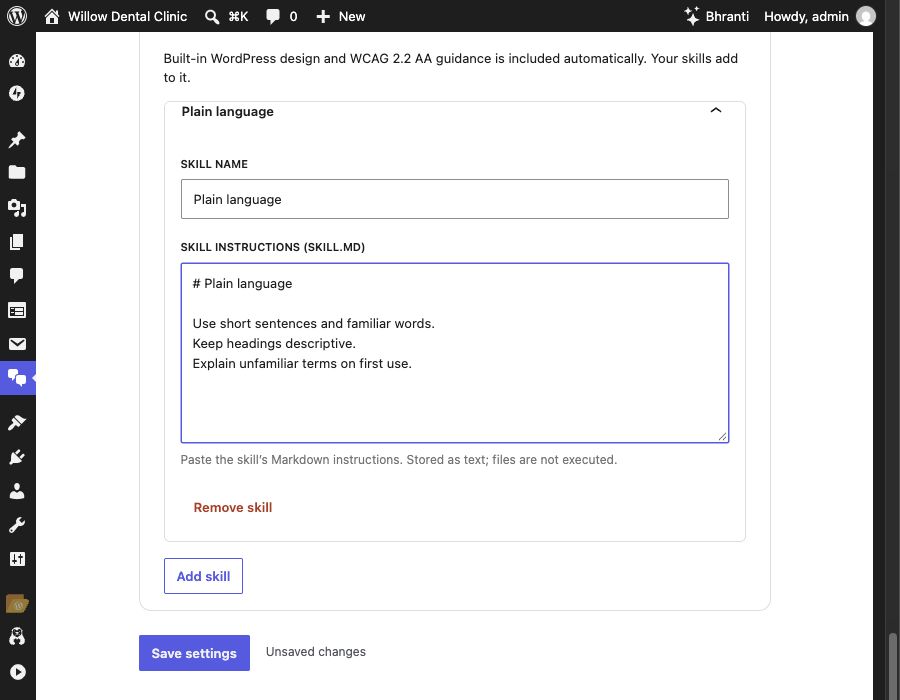
Add a name and instructions for the skill, then select Save settings. Select the screenshot to view it at full size.
Bhranti includes WordPress design and accessibility guidance automatically. Your skills add to that guidance. Review the finished page yourself; instructions alone do not guarantee accessibility.
Use the agent in a chat
- Open the Bhranti sidebar.
- Select Chats.
- Choose the named agent in the Agent selector.
- Return to the message box and send your request.
The selector appears when more than one agent is configured. It is unavailable during an active task. Each request keeps the agent and settings it started with. Editing an agent does not change a task that is already running. Send a new request to apply saved updates.
Edit or remove instructions
Edit the agent or skill’s fields, then Save settings. To remove one:
- Select Remove skill or Remove agent on the relevant card.
- If a confirmation appears, choose Remove or Keep.
- Select Save settings to finish removing it.
Removing an agent also removes its attached skills when you save. This leaves previously completed site work in place.
Keep instructions manageable
The current Settings limits are:
- Up to 20 agents, including the built-in Bhranti agent.
- Up to 20 skills per agent.
- Names up to 100 characters.
- Each instruction document up to 16,000 characters.
- All settings together below 200,000 characters.
Short, focused instructions are easier to review and maintain. Name the expected result and how to handle missing facts. Avoid conflicting rules spread across the global prompt, agent and skills.
Instructions do not change permissions
Agents and skills cannot enable a disabled action, skip a confirmation, add unsupported plugin features, or run code. Instructions found in page content cannot override your settings.
Relevant instruction text may be sent to your AI provider. Keep passwords, API keys and confidential material out of it. For a private preference you explicitly want remembered, see Memory.